Return Direct Supply Equipment
As a Direct Supply contractor, you can cancel an order before it is shipped, picked up, or delivered. After you receive the order, you must initiate a return.
Cancel a Direct Supply Order
On the rare occasion when you need to cancel an order, follow these instructions to cancel an order before it is picked up or delivered.
- Locate the order you want to cancel. The order’s status must be Created.
- Click Actions and click Cancel.
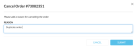
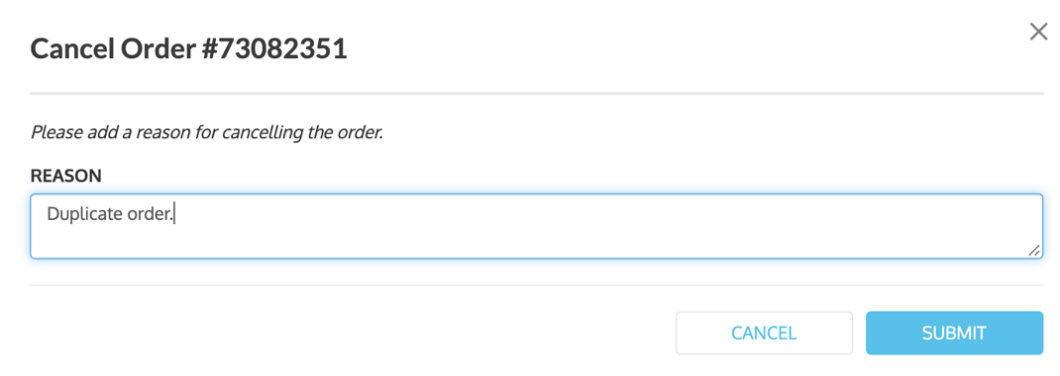
- Type the reason for canceling the order and click Submit.
- Verify that the status of the order changed to Cancelled.


You can view, but not edit, a canceled order in the Motili Platform.
Return Equipment or Supplies
Use these guidelines to create a return request after equipment or parts were picked up or shipped.
- The line item's status must be Completed, which indicates that the equipment was ordered and fulfilled.
- Partial returns are not permitted. If you ordered two of the same item, you must return both items.
- The line item must be for equipment or a part. You cannot select a line item for labor, custom fees, freight, or supplied labor.
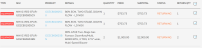
- Locate the order you want to cancel and verify that the status is Completed.
- In the Orders page, click Advanced Filters.
- Click the Return Status field and choose Completed.
- Click Save.
 Tip: Only Direct Supply contractors have access to the Orders menu. If you don’t see the Orders menu, contact Motili Support.
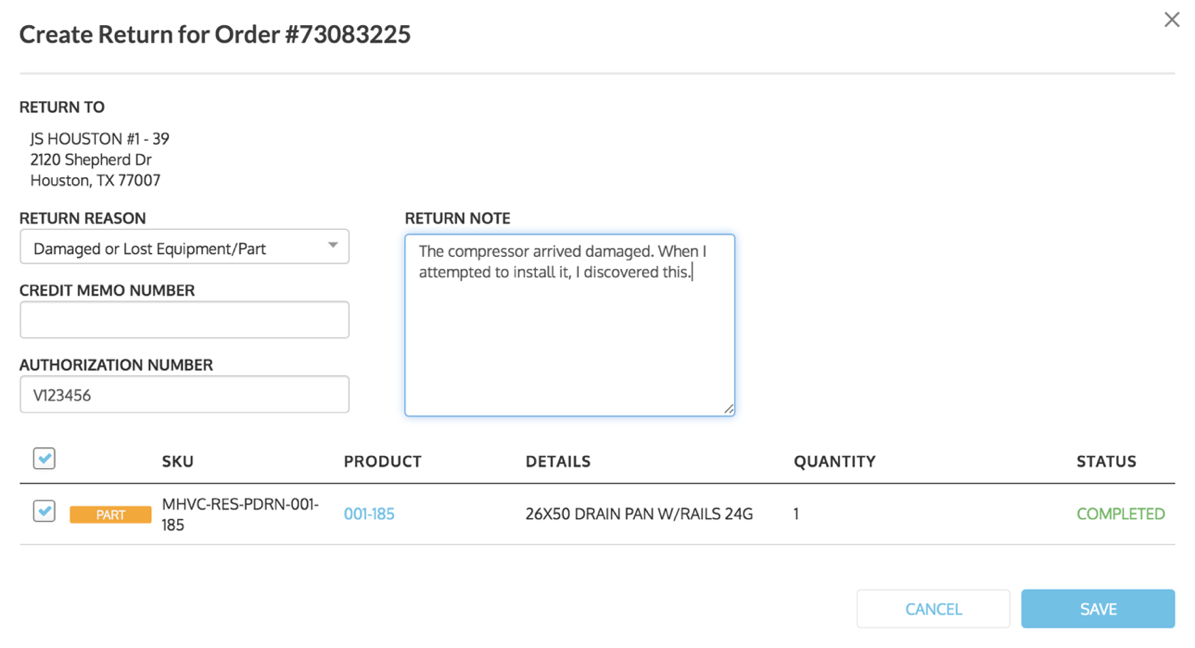
- Click Actions and click Create Return.
- Complete these fields:
- (Required) Return Reason - Choose a reason from the drop-down menu.
- Credit Memo Number - Type the number that ties the credit to what was issued from the vendor. You likely won’t have this number at this point.
- Authorization Number - Type the number supplied by the vendor to approve the return.
- Return Note - Type more detail here.
- Select the check box next to the equipment you are returning and click Save. You can select multiple items if they are all being returned for the same reason.

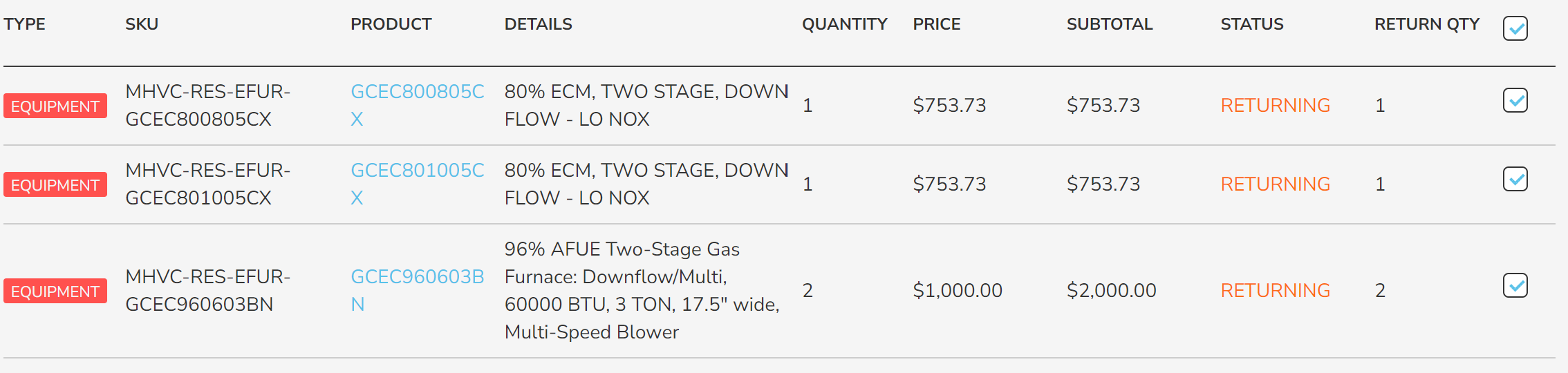
- Verify that the status of the line item being canceled changed to Returning and a Returns tab appears in the order.