Create a Direct Supply Order
Only Direct Supply clients and contractors have access to the Orders menu. If you don't see the Orders menu, contact Motili Support. You can check equipment availability before you place the order (see Check Equipment Availability).
- Click Orders, click Actions, and choose Create.
- The client for whom the equipment is being ordered appears on the order. If you don’t see the client, contact Motili to set you up as a Direct Supply contractor for this client.
- Complete all required fields in the Details section, including the property. Start typing the property location and it automatically fills in.
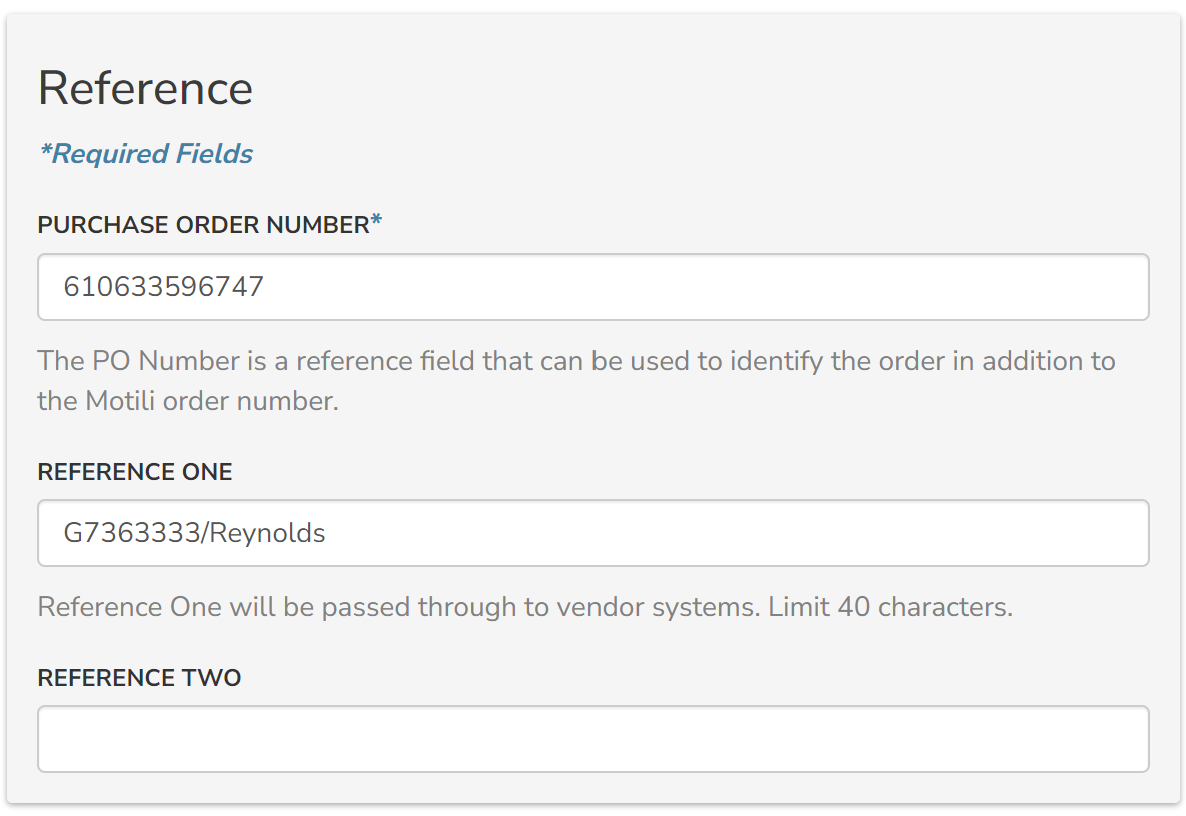
- In the Reference section, add the client's PO number. For Reference One, type the client's work order number.

- In the Instructions section, add any important notes. For example, Needed by 7/1. No liftgate on site.
- In the Contact section, enter contact type and information. You can add more than one contact.
- Click Notifications and choose which notifications you want to receive.
- Click Add to save your information.
- Click Next.
- In the Product Selector, go to the Filters section and select the appropriate product category and subcategories, and review the resulting list of products. If you are a Direct Supply contractor ordering equipment on behalf of a Direct Supply client, you can only filter and search products that are available to that client. Pricing is only visible to the client.
 Tip: Use the Search bar to type product names or SKUs.
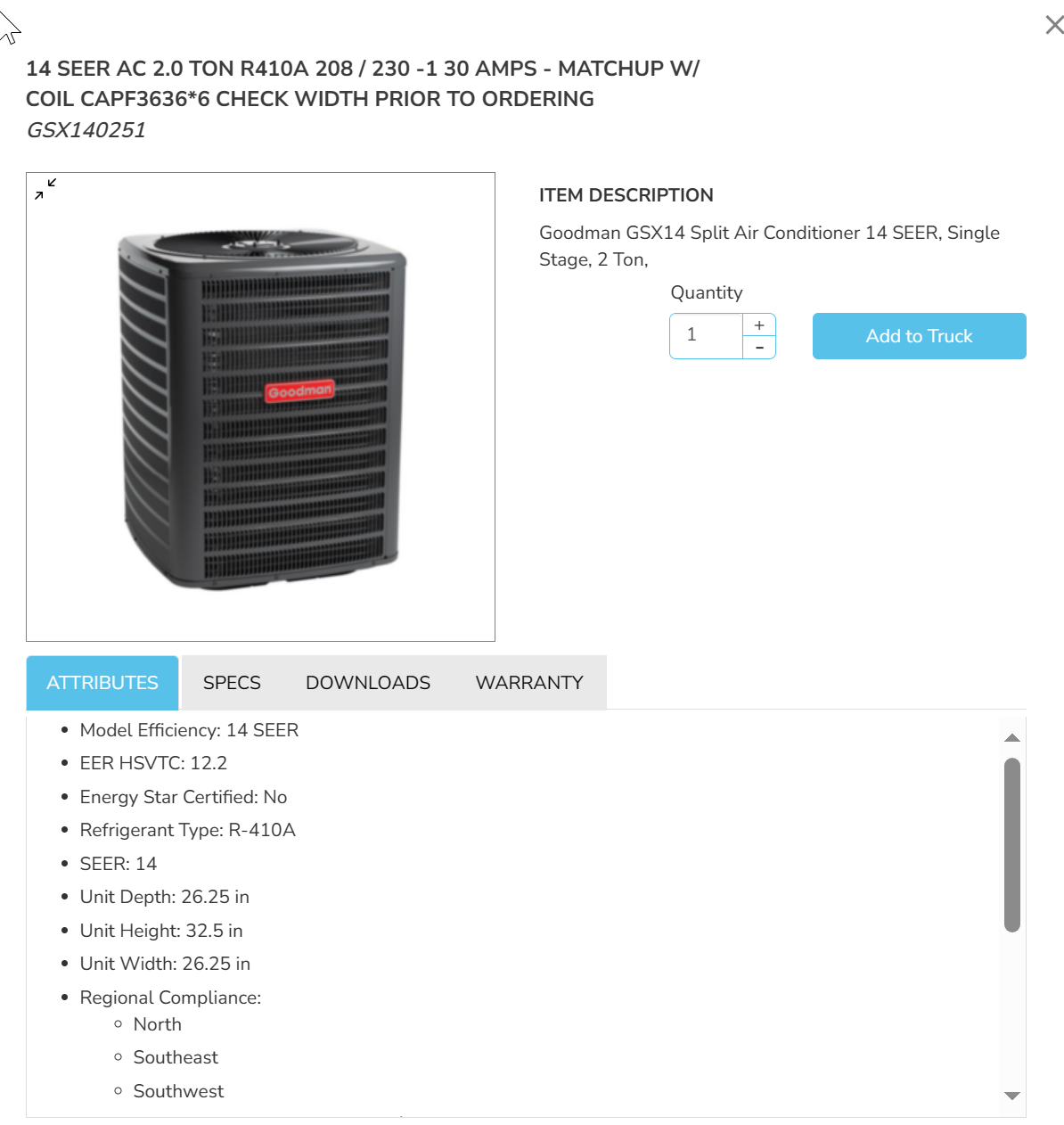
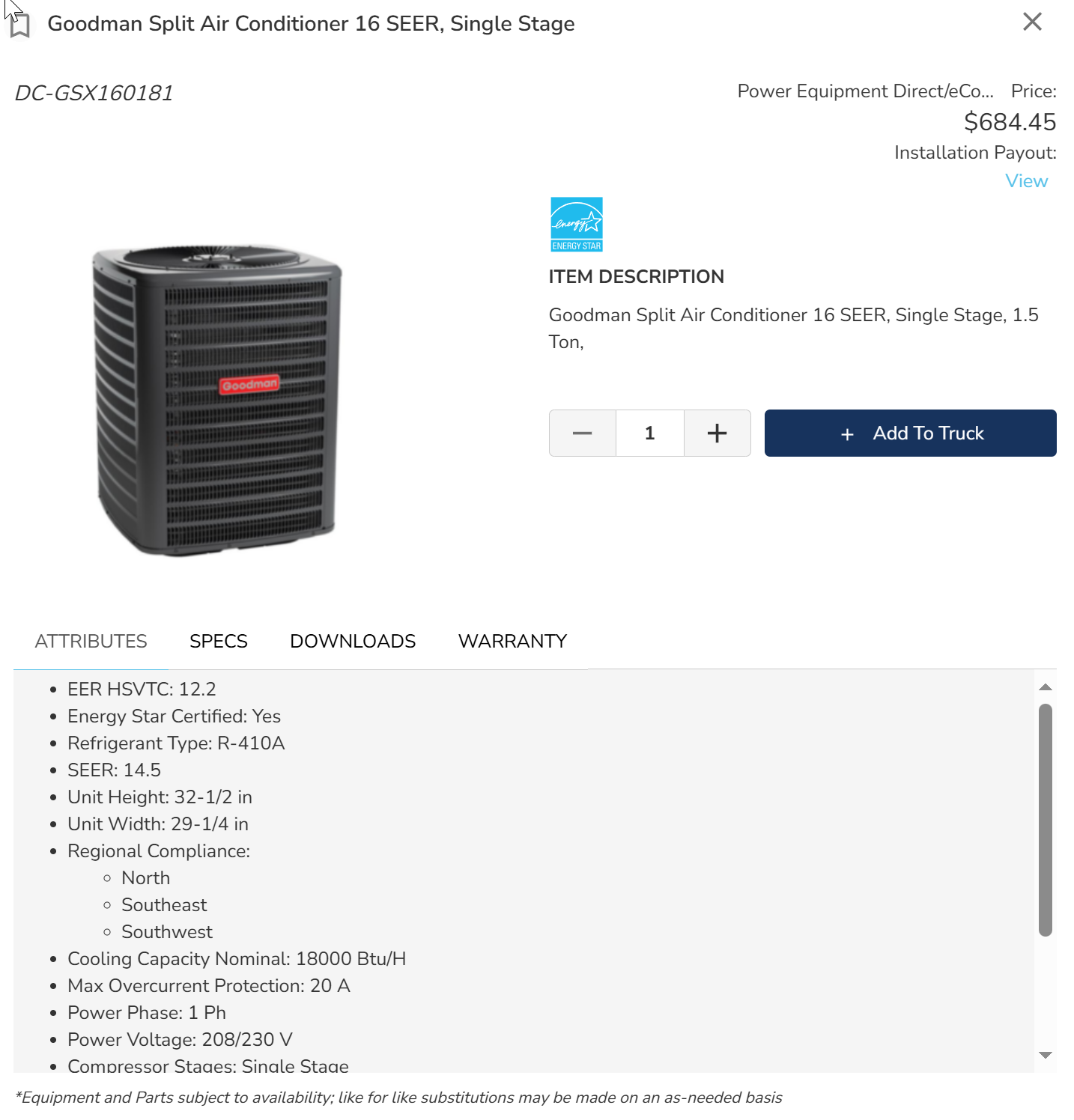
 - When you locate the item, click View Details. This screenshot reflects what the contractor would see.

The Attributes tab contains product details like refrigerant type, SEER, tonnage, and size. - Select other tabs to see more details:
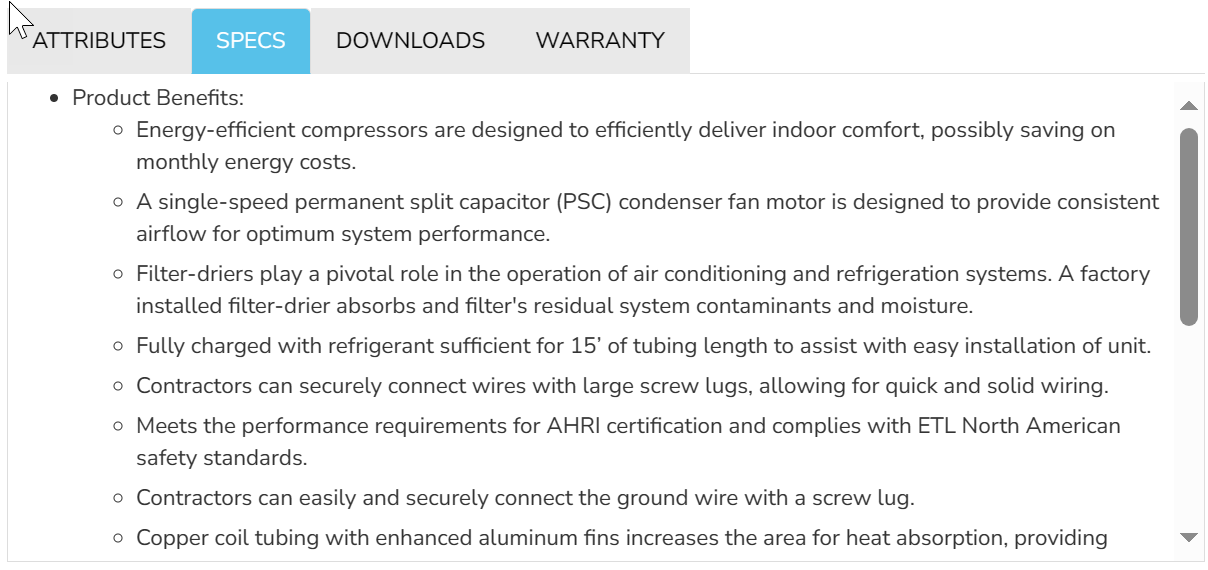
- Specs - See product benefits and engineering features for this product.
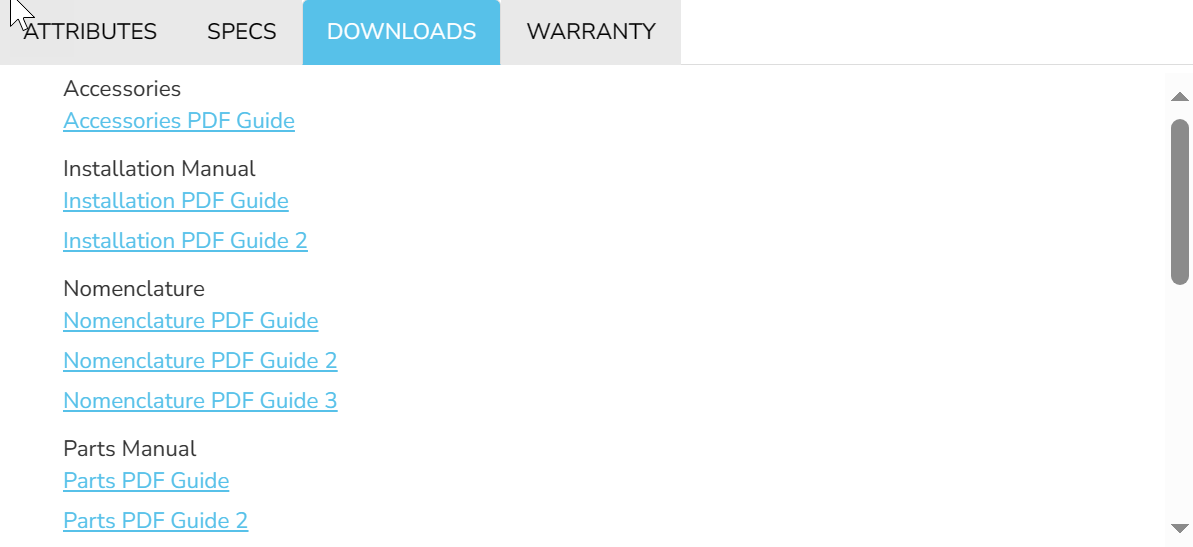
- Downloads - View PDFs of accessories, parts, installation guides, etc.
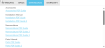
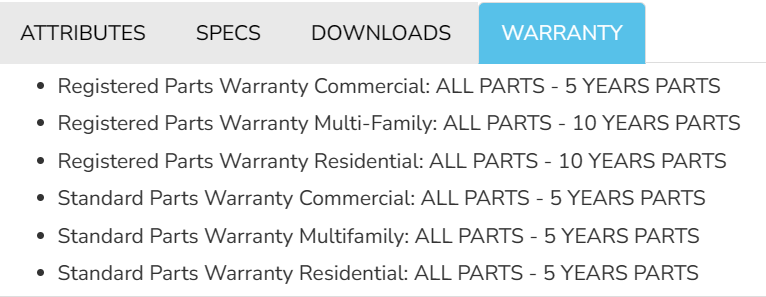
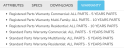
- Warranty - Display parts warranties for residential, multi-family, and commercial equipment.
- Verify the Quantity and click Add to Truck. The number of items in the truck increases. Contractors and clients see this information, while the client can also see the equipment price.

- Click To Truck to review the items. Supplied SKUs for custom equipment also appear here.
- Click the truck and choose a delivery method:
- Click Pick It Up, choose Location or Branch Number. Click Choose and pick a Distribution Center. You can also pick your preferred location and a Motili rep will manage the order to get the product to your preferred location.
- Click Get It Shipped, enter the shipping address, and click Choose. Motili's software finds the closest location with in-stock equipment. You can also indicate if this is a residential delivery or if a liftgate is needed.
- Click Order, review the information, and click Order again at the confirmation screen. If the equipment is in stock, the order automatically generates a vendor order number. If the equipment is not in stock, the order goes to Submitted status and a Motili rep will work your order to get the vendor order number.
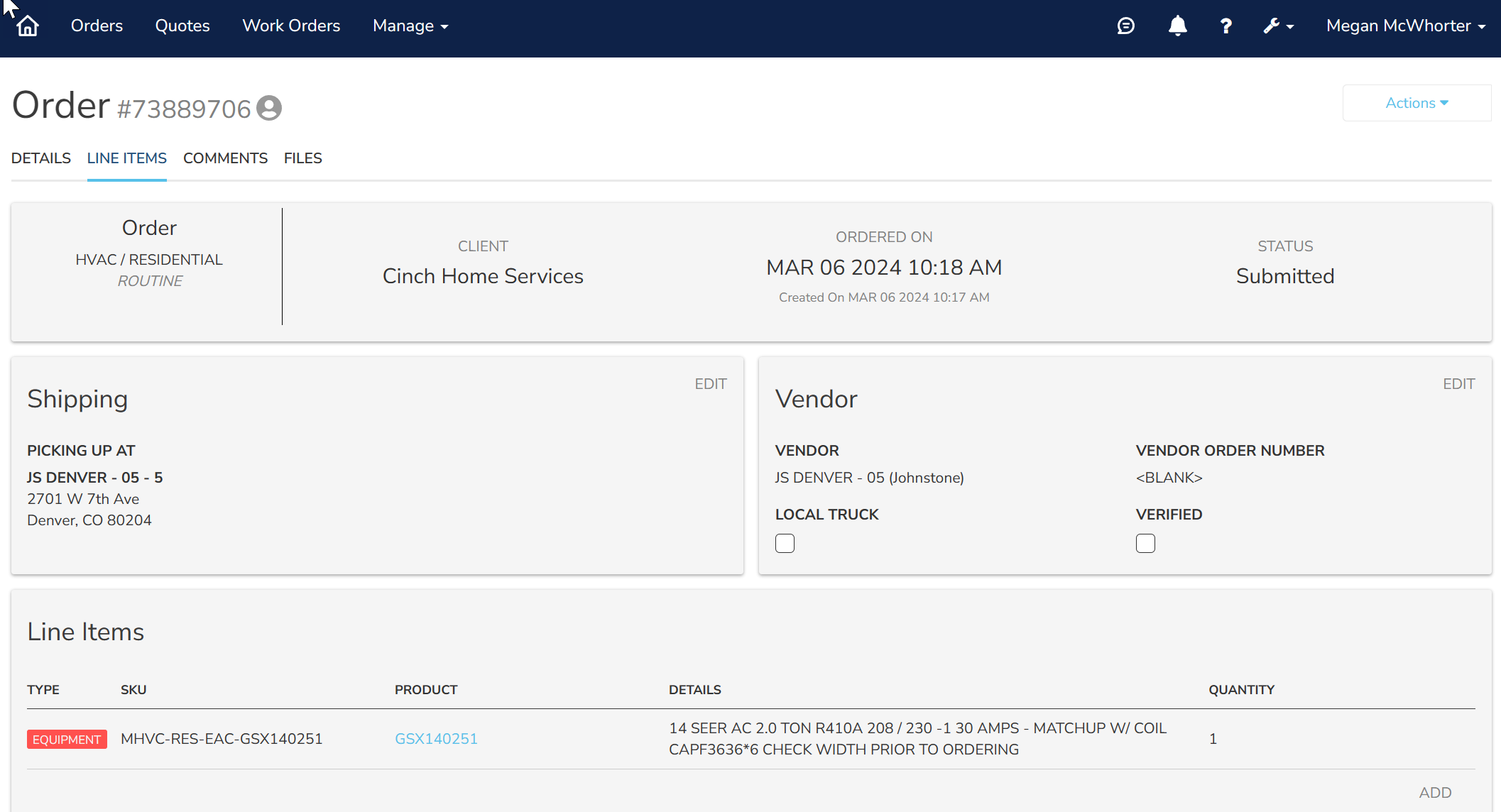
- After you place the order, select the Line Items tab to review it.

- The client will review and approve the order before it is processed. See Approve or Reject a Direct Supply Order.
- When the equipment is ready, you’ll receive text and email notifications.
- (Optional) If you need to add supporting information, such as Proof of Delivery (POD) or Proof of Return (POR), select the Files tab, upload the file, click Type and choose the type, and click Upload.